Highlight AI
Boosts productivity by integrating AI assistance across all computer apps
You’re at your desk, juggling a dozen browser tabs, a spreadsheet that’s starting to look like a novel, and a meeting that’s about to start in five minutes. Enter Highlight AI, a tool that feels like it’s been eavesdropping on your workflow and decided to lend a hand. This isn’t just another AI assistant. It’s a desktop companion that weaves itself into every app you use, from Notion to Slack, without breaking a sweat. I think it’s the kind of tool that could make you wonder how you ever got by without it, though it’s not without a few quirks that might raise an eyebrow.
Highlight AI’s strength lies in its ability to understand what’s happening on your screen. Select some text, snap a screenshot, or even transcribe audio from a meeting, and it churns out answers or tasks faster than you can say “productivity hack.” The Chat feature is a standout, letting you tap into models like Claude or ChatGPT with a quick keyboard shortcut. No need to toggle between apps or copy-paste like it’s 2010. It’s fast, intuitive, and, frankly, a bit addictive. The Tasks feature is another gem, automatically detecting to-dos from your screen and notifying you to prioritize them with a single click. For someone who’s constantly drowning in action items, this feels like a lifeline.
But it’s not all smooth sailing. Some users have reported hiccups with uninstalling the app on Windows, where it lingers like an uninvited guest if you don’t quit it properly before removing it. Privacy-conscious folks might also pause at the idea of an app that can read your screen, even if Highlight AI insists it only processes what you explicitly ask it to. The privacy policy is reassuring — data stays local, encrypted, and isn’t shared — but you’ll want to dig into it yourself to feel fully at ease. Compared to competitors like Notion AI or Otter, which focus more narrowly on note-taking or transcription, Highlight AI’s broader integration across all apps gives it an edge, though it might feel overwhelming if you’re not ready to fully commit to its ecosystem.
The Auto TODO app, part of Highlight AI’s expanding universe of community-built tools, is a pleasant surprise. It scans your screen for tasks and organizes them without you lifting a finger. I was skeptical at first, but watching it pluck action items from a chaotic Google Doc was oddly satisfying. On the flip side, the Chrome extension, which speeds up text extraction from web pages, requires the desktop app to function, which might annoy users hoping for a standalone browser tool. Pricing is another consideration. Highlight AI is free for most users, but heavy usage might push you toward a paid tier down the line, which feels fair but less generous than fully free tools like Obsidian with AI plugins.
What makes Highlight AI special is its knack for feeling invisible yet indispensable. It’s not trying to replace your workflow — it’s enhancing it, like a trusty sidekick who knows your habits better than you do. My advice? Give it a spin for a week, test it across your most-used apps, and see if it clicks. If you’re privacy-wary, double-check the settings and privacy policy before diving in. Keep an eye on the community apps on their site too — some of those, like the Twitter Thread Helper, might just spark new ideas for your workflow.
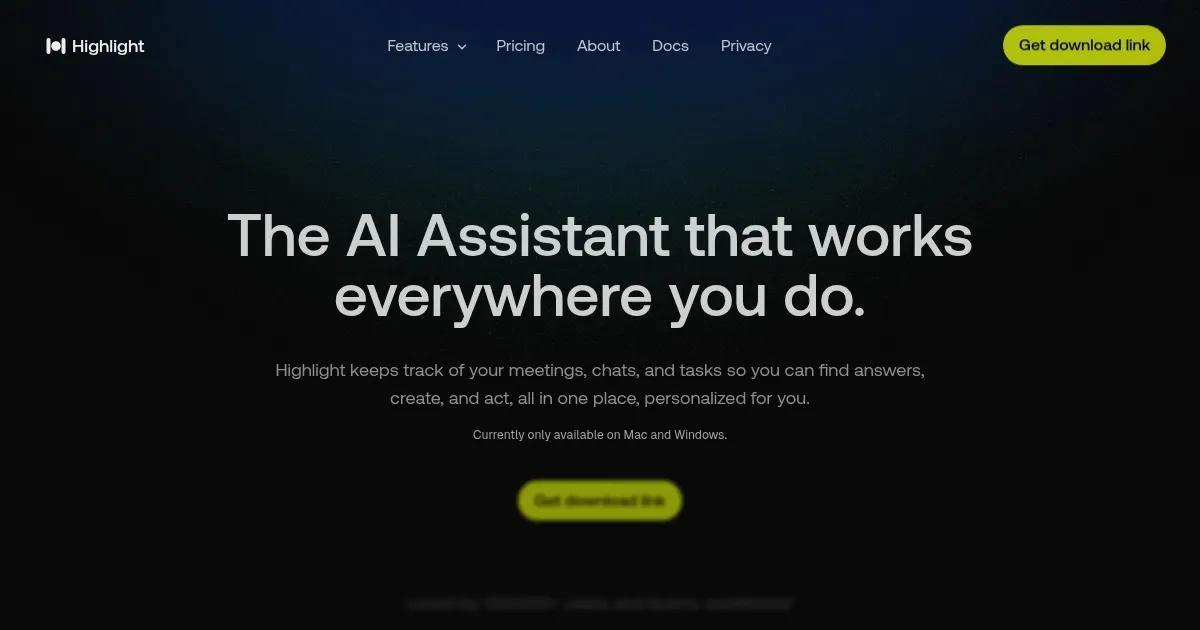
Homepage Screenshot 📸
What are the key features? ✨
- Chat: Provides instant answers from selected text or screenshots across any app.
- Tasks: Automatically detects and prioritizes to-dos from on-screen content.
- Audio Transcription: Transcribes meeting or video audio for quick note-taking.
- Chrome Extension: Speeds up web text extraction without heavy OCR usage.
- Community Apps: Offers customizable tools like Auto TODO and Twitter Thread Helper.
Who is it for? 🤔
Examples of what you can use it for 💡
- Project Manager: Uses Tasks to auto-detect action items from emails and prioritize them.
- Student: Transcribes lecture audio to create study notes quickly.
- Content Creator: Leverages Twitter Thread Helper to craft shareable posts from articles.
- Researcher: Summarizes lengthy PDFs using Chat for faster insights.
- Developer: Integrates with GitHub to generate code snippets from prompts.
Pros & Cons ⚖️
- Seamless app integration
- Privacy-focused local data
- Free plan for most users
- Overwhelming for simple needs
FAQs 💬
Ready to try Highlight AI?
Boosts productivity by integrating AI assistance across all computer apps
Visit Highlight AIHighlight AI alternatives 🔗