pdfAssistant
An AI tool that acts like a chatty intern who's freakishly good at handling PDFs
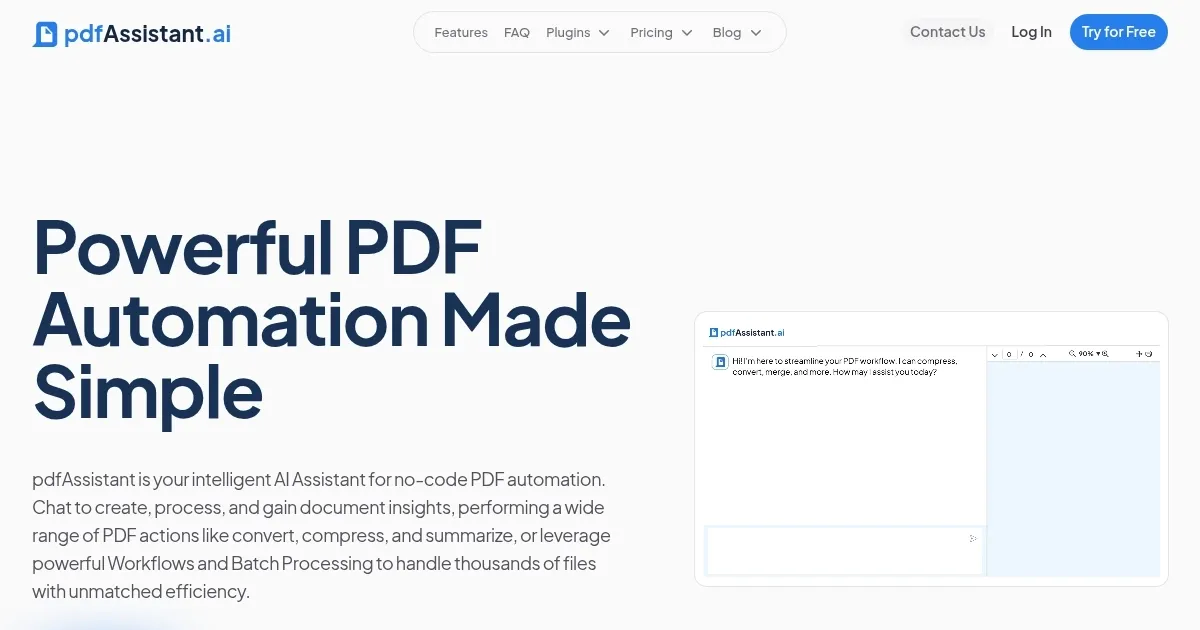
pdfAssistant is a cool AI tool that’s like having a chatty intern who’s freakishly good at PDFs. You type a command — like “add a watermark to this contract” — and the AI zips through the task with a precision that feels almost smug. Built on the pdfRest engine, it’s got the muscle to handle everything from merging documents to compressing hefty files. I tried splitting a 50-page report into chunks, and it was done before I could refill my coffee. The interface? A simple chat window. No fuss, no menus, just you and an AI that gets it.
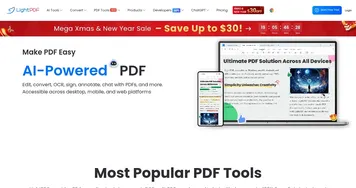
What I liked most was the speed. I uploaded a scanned PDF, asked it to apply OCR, and within moments, I had searchable text. Magic. The batch processing feature also impressed me — perfect for anyone dealing with stacks of files. Compared to Foxit or LightPDF, pdfAssistant feels more conversational, less like a traditional editor. Foxit’s got a robust desktop app, but it’s heavier on system resources. LightPDF’s free tools are nice, but they don’t match the AI-driven flexibility here.
On the flip side, I hit a snag when my Wi-Fi dipped — everything’s cloud-based, so no internet, no dice. The pay-as-you-go pricing is flexible but can feel like a guessing game if you’re not sure how many credits you’ll burn through. Also, while the AI is smart, it’s not psychic. Vague commands like “fix this PDF” can lead to a back-and-forth to clarify your intent. A surprise perk? The Adobe Express integration. I exported a design as a PDF/A for archiving, and it was seamless, like the tool was showing off.
For someone like me, who’s not a PDF pro but needs to get things done, pdfAssistant is a breath of fresh air. It’s not flawless, but it’s intuitive and fast. Try it for quick tasks first — maybe a file conversion or two. If you like the vibe, explore the workflow automation for bigger projects. It’s a tool that grows on you, especially if you hate traditional PDF software.
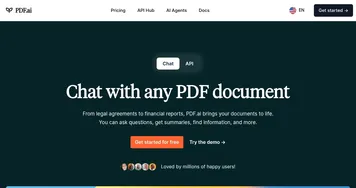
Homepage Screenshot 📸
Video Overview 🎬
What are the key features? ✨
- Chat Interface: Enables PDF tasks via natural language commands.
- Batch Processing: Processes multiple files simultaneously for efficiency.
- Document Generation: Creates new PDFs from text prompts using AI.
- Adobe Express Integration: Exports designs as PDF/X or PDF/A formats.
- OCR Application: Converts scanned PDFs into searchable text.
Who is it for? 🤔
Examples of what you can use it for 💡
- Student: Converts lecture notes into searchable PDFs for study.
- Small Business Owner: Merges invoices into a single file for clients.
- Graphic Designer: Exports Adobe Express designs as PDF/X for printing.
- Researcher: Applies OCR to scanned articles for text extraction.
- Freelancer: Creates professional reports from text prompts quickly.
Pros & Cons ⚖️
- Fast batch processing
- Strong Adobe Express integration
- AI-driven document creation
- Limited advanced features
- Vague commands may confuse AI
FAQs 💬
Ready to try pdfAssistant?
An AI tool that acts like a chatty intern who's freakishly good at handling PDFs
Visit pdfAssistantpdfAssistant alternatives 🔗