AI Perfect Assistant
Integrates AI into Office apps for instant content generation and editing
Ever notice how a good gadget slips into your routine like it was always meant to be there? AI Perfect Assistant does just that for folks chained to Microsoft Office. It tucks advanced AI right into Word, Outlook, Excel, PowerPoint, and even OneNote, turning everyday drudgery into something almost effortless. No more bouncing between tabs or apps; you highlight text, hit a button, and watch it polish your draft or spit out a full email reply. I think that’s the real appeal here, especially if you’re knee-deep in reports or presentations and every second counts. The tool draws on ChatGPT’s smarts but tailors it for Office, offering features like one-click summaries or formula checks in Excel that feel custom-built for the suite. And with over 60 AI functions, from tone tweaks to translation, it covers ground that standalone apps just can’t touch as seamlessly.
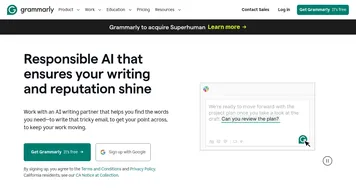
What sets it apart? Depth without the hassle. Take the Prompt Templates in Word: you select a style, say professional or casual, and it crafts content that matches your voice, pulling from your selected text as a starting point. Users on Product Hunt rave about how it turns rough notes into client-ready docs in seconds, and I get why. It’s not flashy; it’s functional, like a reliable Swiss Army knife for your desktop. Compared to Grammarly, which sticks mostly to Word and shines at grammar but skimps on generation, AI Perfect Assistant spreads across the whole Office ecosystem. Or look at QuillBot: great for quick paraphrasing anywhere, but it lacks that native plug-in feel, forcing you to copy-paste. Here, everything happens in-place, which probably saves hours weekly for teams grinding through emails or slides. Pricing wise, it runs cheaper than Grammarly’s business tier or QuillBot Premium, with a single sub unlocking full access across apps, making it a smart pick for small outfits or solo pros.
Of course, it’s not flawless. Some early adopters on Reddit mention occasional glitches with longer docs, where the AI might loop on revisions or miss nuanced context, like industry jargon without a nudge. I think that comes from relying on ChatGPT models; it’s powerful but needs clear prompts to shine. And while the interface is clean, it could use more customization, say drag-and-drop templates for recurring tasks. Still, the surprises keep it fresh: that moment when it auto-generates a PowerPoint outline from your bullet points, complete with suggested visuals, feels like magic. Or in Outlook, drafting replies based on thread history without the usual blank-page stare-down. Folks might love the time it frees up for big-picture thinking, but grumble if they’re expecting zero learning curve. Overall, it empowers without overwhelming, grounding AI in tools you already know.
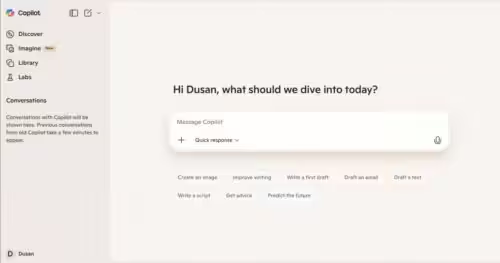
Dig into the tech side, and it’s impressive how it handles integrations. GDPR compliant, it processes data securely within Office, using API calls to ChatGPT 3.5 or 4 depending on your plan. No cloud uploads needed for basic edits, which keeps things snappy. External reviews from sites like Futurepedia highlight its edge in multi-app workflows, scoring high for value in 2025 benchmarks against rivals. One user shared turning a messy Excel dataset into a formatted dashboard prompt-style, something Copilot dabbles in but doesn’t nail as consistently for non-subscribers. It’s aspirational yet practical, showing how AI can elevate routine work without replacing the human spark.
If you’re eyeing this, start small: install the add-in, test it on a low-stakes email or slide deck. Tweak prompts with specifics like “match my company’s formal tone” to see quick wins. Pair it with Office’s built-ins for hybrid power, and you’ll likely wonder how you managed without. Give it a spin; your workflow might thank you.
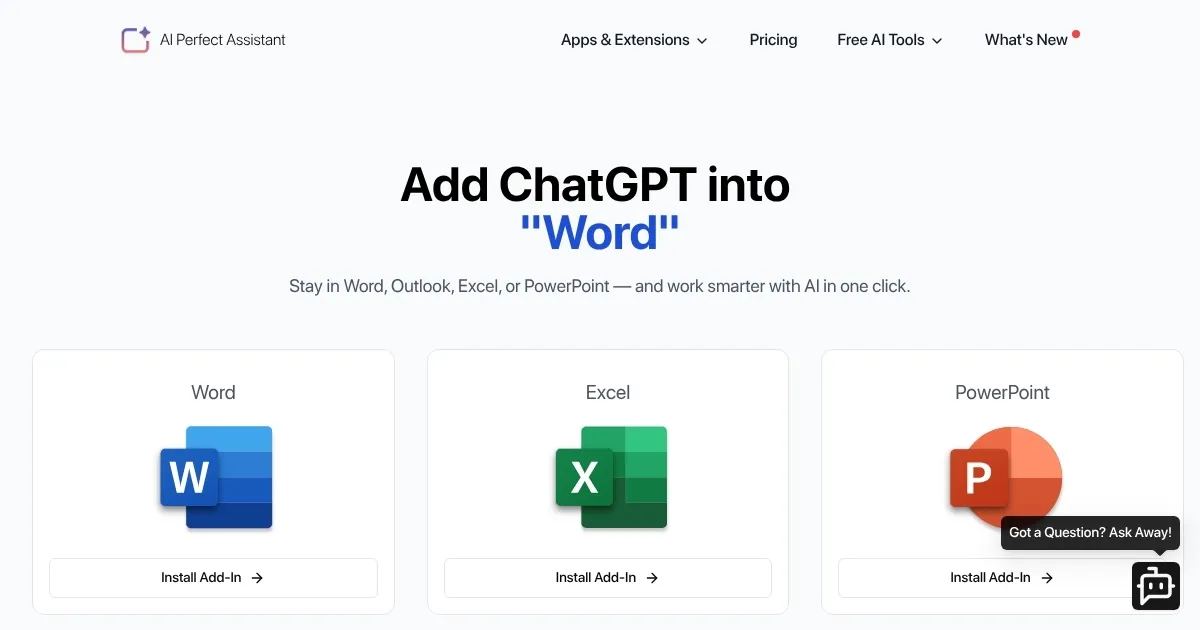
Homepage Screenshot 📸
Video Overview 🎬
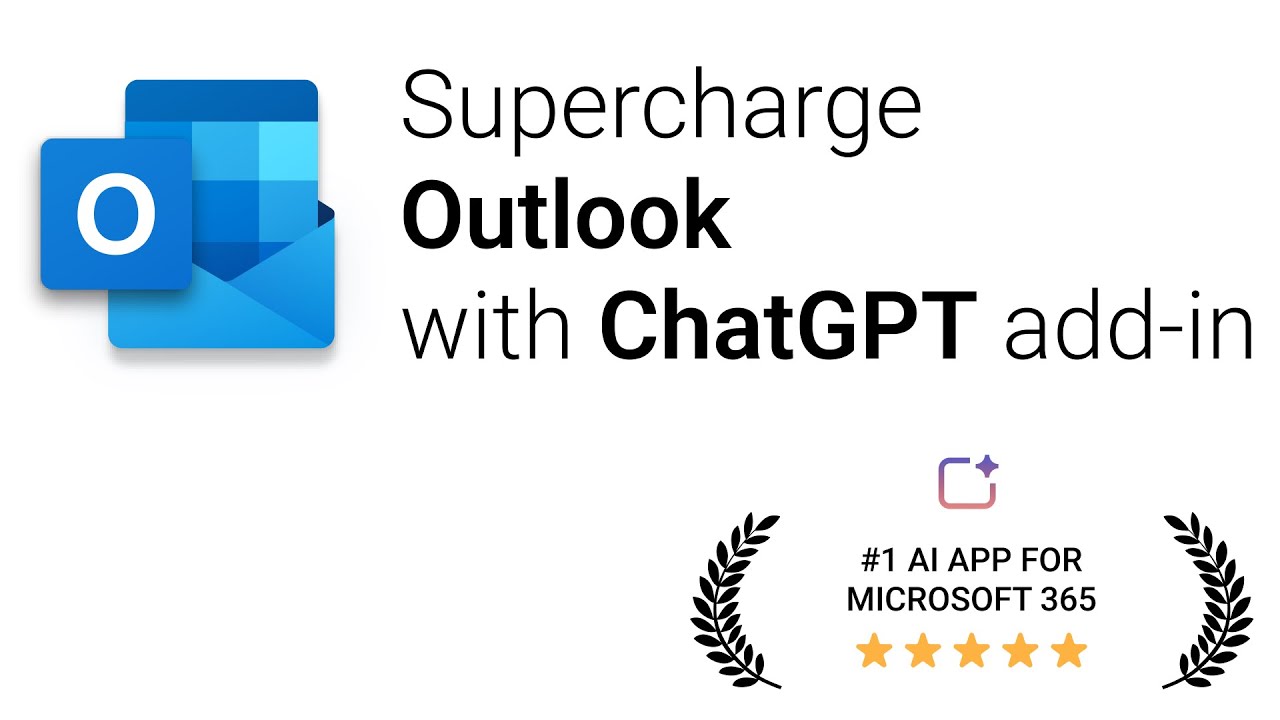
What are the key features? ✨
- Prompt Templates: Customizable starters that generate content in specific styles or tones directly from selected text in Word or Outlook.
- Slide Creator: Builds PowerPoint presentations from outlines or prompts, including layout suggestions and placeholder visuals.
- Formula Checker: Analyzes and corrects Excel formulas while explaining them in plain language for quick troubleshooting.
- Email Drafter: Crafts professional replies in Outlook based on email threads, incorporating attachments and context.
- Note Refiner: Transforms rough OneNote entries into structured, polished summaries or agendas in seconds.
Who is it for? 🤔
Examples of what you can use it for 💡
- Marketing Manager: Uses Slide Creator to build pitch decks from brief notes, adding visuals and refining tone for client meetings.
- HR Specialist: Employs Email Drafter in Outlook to generate personalized responses to candidate inquiries based on resume highlights.
- Data Analyst: Runs Formula Checker in Excel to verify complex calculations and summarize trends from large datasets.
- Content Writer: Applies Prompt Templates in Word to expand outlines into full articles with consistent style and key phrases.
- Project Coordinator: Refines meeting notes in OneNote into actionable agendas, distributing polished versions via Teams.
Pros & Cons ⚖️
- Native Office integration
- 60+ AI tools included
- Cheaper than rivals
- Occasional file delays
- Basic free tier limits
FAQs 💬
Ready to try AI Perfect Assistant?
Integrates AI into Office apps for instant content generation and editing
Visit AI Perfect AssistantAI Perfect Assistant alternatives 🔗