Macro
Streamlines document editing with AI-powered tools for seamless workflow
I had a chance to spend a couple of hours tinkering with Macro, and let me tell you, it’s like stepping into a sleek, futuristic office where everything just works. The interface is clean, almost minimalist, but it’s packed with clever tricks that make document editing feel less like a chore. The Command Menu, for instance, is a revelation, I typed a quick query about my test document, and boom, the AI spat out a concise answer without me leaving the page. It’s the kind of feature that makes you feel like you’ve got a personal assistant whispering helpful tips in your ear.
What I loved most was the AI popup feature. Highlight a chunk of text, and you can instantly summarize it or translate it into, say, Spanish, without breaking your flow. I tried it with a dense paragraph, and the summary was spot-on, though I wished it offered a tad more customization in tone. Compared to Google Docs, which feels a bit basic for advanced editing, or Notion, which can be overwhelming for simple tasks, Macro strikes a sweet balance. The PDF and DOCX toggle is another win, I switched between formats without losing my place, a small but delightful detail.
That said, I hit a few snags. The free plan’s 25-document limit felt restrictive, even in my short test, and I can see it frustrating heavy users. Also, the AI’s suggestions sometimes felt like they were trying too hard to be helpful, like a friend who keeps offering advice you didn’t ask for. But the surprises? Oh, they’re there. The @-hyperlinking feature, for instance, let me link references in seconds, it’s like threading a needle with a laser. And the security, Macro’s Zero Data Retention agreements with AI providers gave me peace of mind that my test docs weren’t being snooped on.
For anyone eyeing Macro, it is a tool that feels like it’s reading your mind, anticipating your next move. But it’s not perfect, you’ll need to spend a bit of time getting comfy with the keyboard shortcuts. My advice? Start with a small project, maybe a report or proposal, and experiment with the AI popups. They’re a time-saver. If you’re in a field like law or academia, the AI Compare Summaries will be your new best friend, trust me.
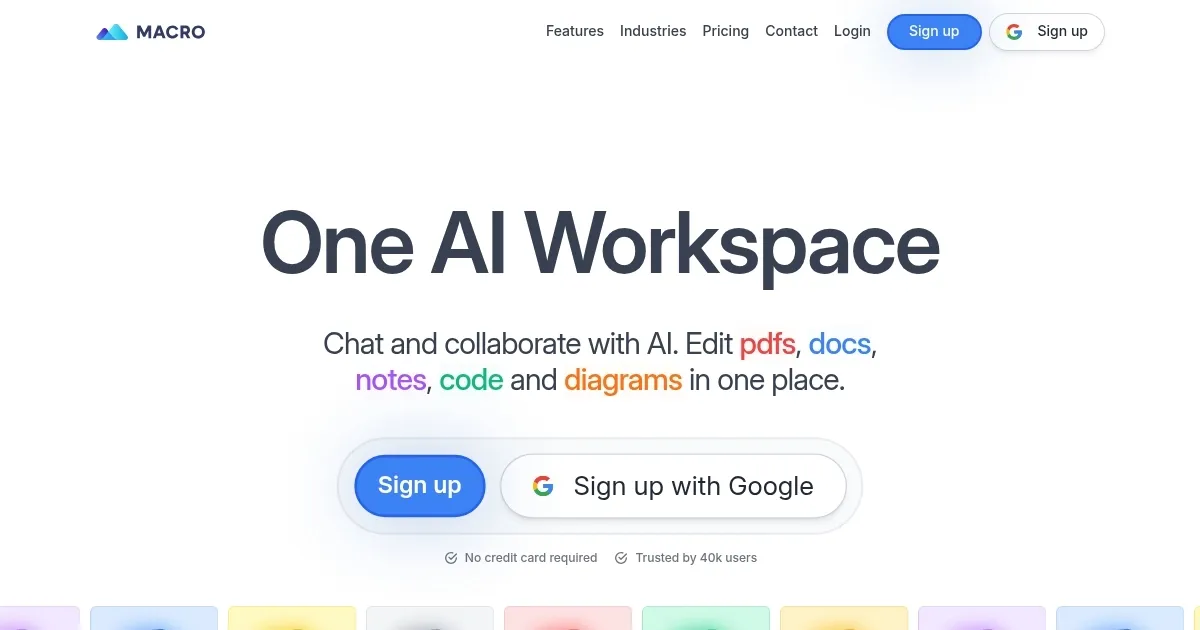
Homepage Screenshot 📸
Video Overview 🎬
What are the key features? ✨
- Command Menu: Access editing tools and AI queries via keyboard shortcuts.
- AI Popups: Summarize or translate highlighted text instantly.
- AI Compare Summaries: Generate bullet-pointed change logs for document revisions.
- PDF/DOCX Toggle: Switch between formats without losing document position.
- Stylesheet Support: Insert and manage DOCX styles for advanced formatting.
Who is it for? 🤔
Examples of what you can use it for 💡
- Lawyer: Draft and revise contracts with AI Compare Summaries to track changes.
- Student: Summarize research papers instantly using AI popups for quick study aids.
- Academic: Format manuscripts with stylesheet support for publication-ready documents.
- Project Manager: Share project proposals via thumbnails for quick team reviews.
- Freelancer: Translate client documents into multiple languages with AI popups.
Pros & Cons ⚖️
- AI popups save time on summaries.
- Strong privacy with Zero Data Retention.
- Stylesheet support rivals Word.
- Free plan caps at 25 documents.
FAQs 💬
Ready to try Macro?
Streamlines document editing with AI-powered tools for seamless workflow
Visit MacroMacro alternatives 🔗