logo-darklogo-darklogo-darklogo-dark
  • Tool Categories
    • ๐ŸŽจArt & Creative Design505
    • ๐ŸขBusiness Management644
    • ๐Ÿ’ปCoding & Development515
    • ๐Ÿ‘ฎDetection83
    • ๐Ÿง General Use727
    • ๐ŸฅHealth & Wellness55
    • ๐Ÿ“ทImage & Photo Analysis100
    • ๐Ÿ–ผ๏ธImage Generation & Editing618
    • ๐Ÿ“Interior & Architectural Design37
    • ๐ŸŽ“Learning & Education483
    • โš–๏ธLegal & Finance90
    • ๐ŸŽญLifestyle & Entertainment236
    • ๐Ÿ“ขMarketing & Advertising627
    • ๐ŸŽงMusic & Audio138
    • ๐Ÿ‘”Office & Workplace1,014
    • ๐Ÿ”ฌResearch & Data Analysis372
    • ๐Ÿ‘ฅSocial Media245
    • ๐ŸŽฅVideo Generation & Editing426
    • ๐Ÿ‘ง๐ŸปVirtual Companion135
    • ๐ŸŽคVoice Generation & Editing381
    • โœ๏ธWriting & Editing808
    • All Categories
    • AI Use Cases
  • News
  • Events
    • Academic Conferences
    • Developer Conferences
    • Expos / Trade Shows
    • Industry Summits
    • Workshops / Training
    • All Events
    • Past Events
  • Saved Tools
  • Suggest a Tool
โœ•
Home › Video Generation & Editing › Video Recording› ScreenPal
ScreenPal

ScreenPal

Capture, edit, and share screen recordings and videos with AI-enhanced tools

ScreenPal is a screen recording and video editing tool designed for educators, businesses, and creators, offering intuitive capture, AI-enhanced editing, and secure sharing. It supports Windows, Mac, iOS, Android, and Chromebook, with a free plan allowing unlimited 15-minute recordings and premium plans unlocking advanced features. The tool integrates with learning management systems and provides AI-driven captioning, transcripts, and interactive elements like quizzes.

The recording process is straightforward. Users launch the app, select screen, webcam, or both, and adjust the capture frame. Audio options include microphone narration and, on paid plans, system audio. The video editor allows trimming, text overlays, transitions, and stock media integration. AI features generate captions, summaries, and quizzes in over 150 languages, enhancing accessibility. Videos can be saved locally, uploaded to ScreenPal’s cloud, or shared via YouTube or Google Drive. The platform is COPPA and FERPA-compliant, ensuring student data privacy.

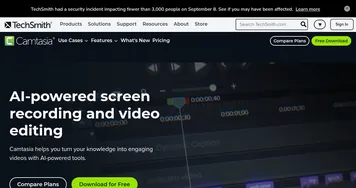
Compared to Loom, which focuses on quick video messaging, or Camtasia, which offers robust editing at a higher cost, ScreenPal balances affordability and functionality. Its free plan is robust, but the 15-minute limit and lack of Linux support are drawbacks. Paid plans, like Solo Max or Team Business, offer unlimited recording and advanced analytics, competitive with similar tools.

The interactive video features, including quizzes and polls, stand out for educational use. Cloud hosting provides secure sharing with customizable links, though some institutional licenses exclude storage. The mobile app supports on-the-go recording but is less polished than the desktop version.

To get started, use the free plan to test core features. Explore AI captioning for accessibility, and consider a paid plan for longer recordings or team collaboration. Always save videos locally to avoid storage issues, and check integration options for your LMS.

Visit ScreenPal ↗
Categories
๐ŸŽฅ Video
โบ๏ธ Video Recording โœ๏ธ Video Editing โœจ Video Enhancing
๐ŸŽค Voice
๐ŸŽค Recording ๐Ÿ’ฌ Speech-to-Text ๐Ÿ“ Transcriber
โœ๏ธ Writing
๐Ÿ’ฌ Subtitle Generation ๐Ÿท๏ธ Caption Generation
๐ŸŽ“ Education
๐Ÿ“บ Tutorial

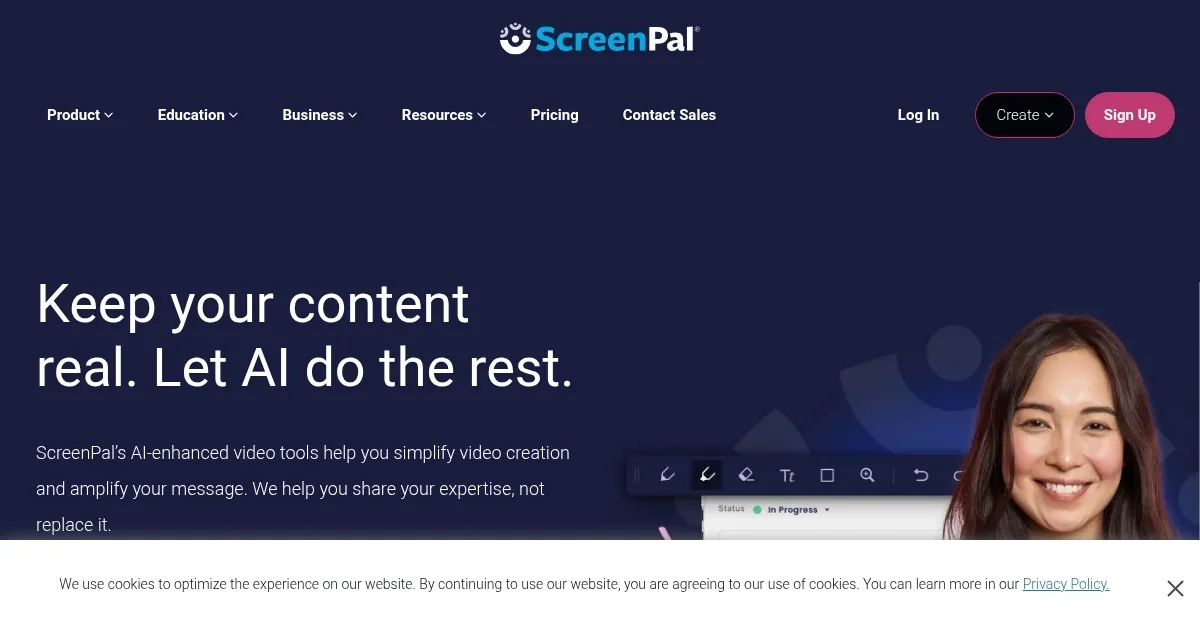
Homepage Screenshot 📸

ScreenPal screenshot

Video Overview 🎬

What are the key features? ✨

  • Screen Recorder: Captures screen, webcam, or both with adjustable frames.
  • AI Captioning: Auto-generates editable captions in over 150 languages.
  • Video Editor: Trims, adds text, transitions, and stock media to videos.
  • Interactive Quizzes: Embeds polls and quizzes for viewer engagement.
  • Content Hosting: Shares videos securely with customizable links.

Who is it for? 🤔

ScreenPal is best for educators creating flipped classroom lessons, businesses producing training or marketing videos, and developers crafting app demos. Its intuitive interface suits beginners, while AI tools and integrations appeal to professionals needing accessible, engaging content. Students and small teams also benefit from its free plan and collaborative features.

Examples of what you can use it for 💡

  • Teacher: Records lessons for flipped learning with interactive quizzes.
  • Marketer: Creates product demos with polished editing and captions.
  • Developer: Builds app tutorials with screen and webcam recording.
  • Student: Submits video assignments with easy editing tools.
  • Trainer: Shares training videos with secure cloud hosting.

Pros & Cons ⚖️

  • Free plan with robust features.
  • AI tools enhance accessibility.
  • Intuitive editing suite.
  • 15-minute limit on free plan.
  • Limited AI for long videos.

FAQs 💬

Is ScreenPal free to use?
ScreenPal offers a free plan with unlimited 15-minute recordings and basic editing.
What devices does ScreenPal support?
It works on Windows, Mac, iOS, Android, and Chromebook, but not Linux.
Can I record audio with ScreenPal?
Yes, it records microphone audio for free and system audio on paid plans.
Does ScreenPal add watermarks?
No watermarks are added on any plan, ensuring professional output.
Can I use ScreenPal offline?
The desktop app works offline, but some features require internet.
Is ScreenPal suitable for education?
Yes, itโ€™s COPPA/FERPA-compliant with features for flipped learning.
How does ScreenPal compare to Loom?
ScreenPal offers more editing tools, while Loom focuses on quick messaging.
Can I share videos securely?
Yes, with customizable links and password protection options.
Does ScreenPal support captions?
AI-generated captions are available in over 150 languages.
Can I integrate ScreenPal with an LMS?
Yes, it integrates with LMS platforms via LTI 1.3.

Ready to try ScreenPal?

Capture, edit, and share screen recordings and videos with AI-enhanced tools

Visit ScreenPal ↗
ScreenPal alternatives 🔗

  1. Vimeo AI Vimeo AI Creates polished videos from single recordings using AI edits and scripts
  2. Loom AI Loom AI Record better video messages with automatic titles, summaries, share messages, and more
  3. VEED VEED Creates pro-level videos with AI-powered editing and collaboration tools
  4. Clipchamp Clipchamp Edit videos effortlessly with AI-powered tools and templates
  5. Fathom Fathom An AI assistant for recording, transcribing, highlighting, and summarizing your meetings
  6. Descript Descript Transforms video editing with AI-driven text-based tools and automated design
Share
ScreenPal screenshot enlarged
Promote ScreenPal
light badge
Copy Embed Code
dark badge
Copy Embed Code
neutral badge
Copy Embed Code
Best AI Tools

Discover the best AI tools for any use case

Explore
  • Tool Categories
  • AI Use Cases
  • AI Events
  • AI News
  • Saved Tools
Company
  • About Us
  • Contact Us
  • Media & Partnerships
  • Suggest a Tool
Legal
  • Privacy Policy
  • Terms of Service
Copyright © 2026 Best AI Tools 415 Mission Street, 37th Floor, San Francisco, CA 94105