Frequently Asked Questions
How do I convert an audio file to text?
To convert an audio file to text, upload it to an audio-to-text tool, choose the language, and start the transcription. The tool processes the recording and returns editable text, usually within a few minutes. Most accept common formats like MP3, M4A, and WAV, and many also pull audio straight out of a video file.
What is the best tool to convert audio to text?
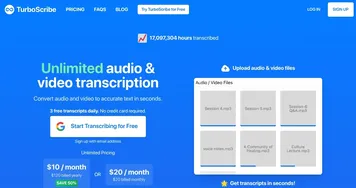
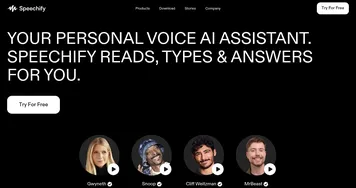
For uploaded files, TurboScribe is a strong pick thanks to fast processing and generous length limits, while Otter.ai suits anyone who also wants searchable notes. Speechify works well if you want to read and listen at once. If you plan to edit the recording afterward, a tool that links text to audio saves real time.
Can I transcribe a long audio recording?
Yes, most audio-to-text tools handle long recordings, though free tiers often cap individual files at around 30 to 90 minutes. Paid plans raise or remove that limit and let you process several files at once. For multi-hour audio, check the per-file length cap before uploading so the tool does not truncate it.
What audio formats can be converted to text?
Most audio-to-text tools accept MP3, M4A, WAV, AAC, and FLAC, and many take video files like MP4 by extracting the audio. If your recording is in an unusual format, converting it to MP3 first avoids upload errors. Check the supported list before you start, since limits vary between the free and paid tiers.
Is audio-to-text conversion accurate?
Accuracy depends mostly on the recording quality. A clear single-speaker file transcribes at roughly 90 to 95 percent accuracy, but muffled audio, crosstalk, or strong accents lower that. Recording in a quiet room and using a decent microphone makes a bigger difference to the result than the specific tool you choose.